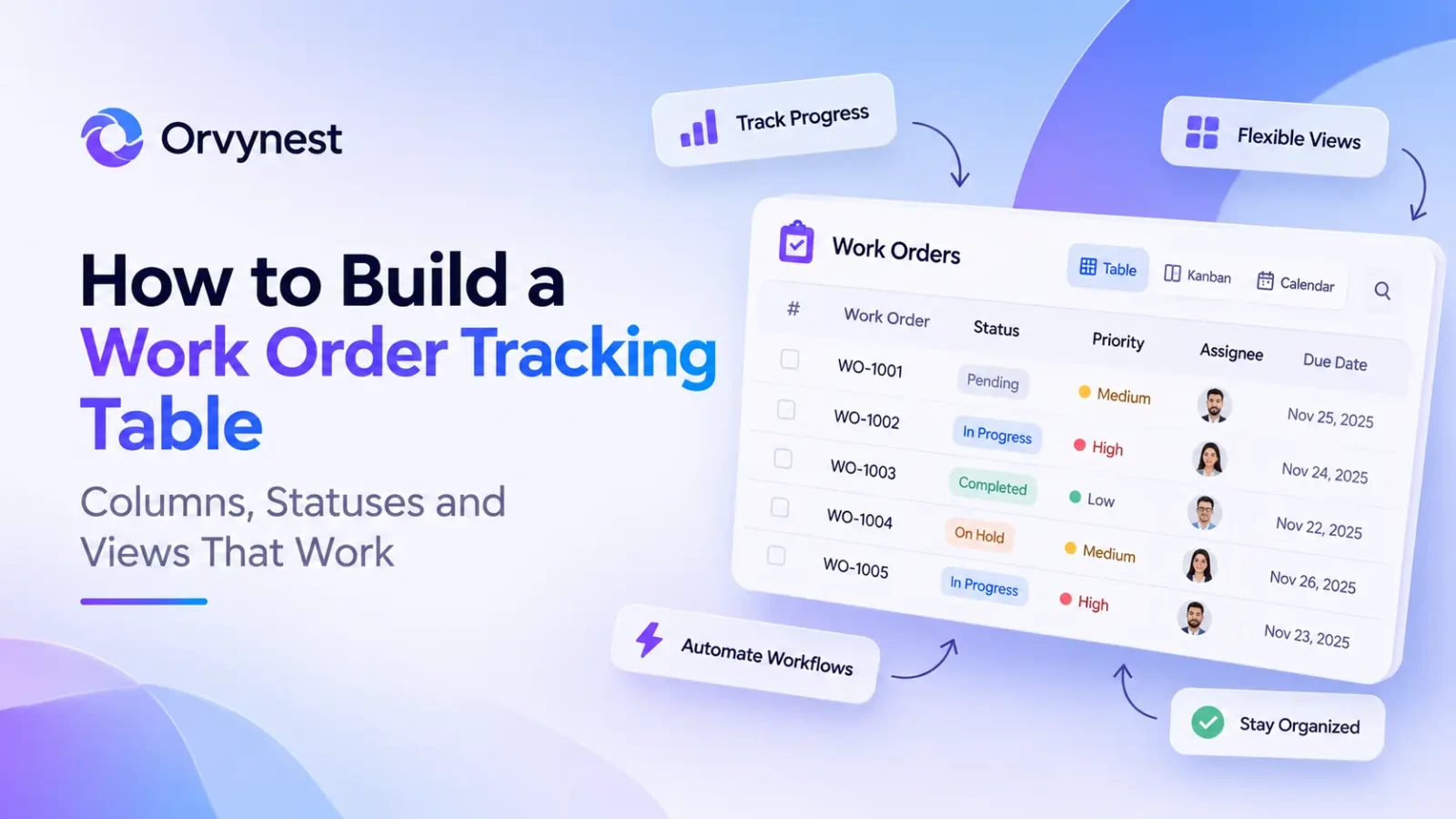
Work orders slip through the cracks when they live in chat messages, emails and paper notes. A simple, well-structured table fixes most of that. This guide shows the columns, statuses, color rules and views that make a work order tracking table actually usable, whether you run a facility, a field service team or a small repair business.
What a good work order table must answer
Every work order table should answer five questions at a glance:
- What needs to be done, and where?
- Who is responsible?
- How urgent is it?
- What is the status right now?
- When is it due, and is it late?
If your table can’t answer these in a few seconds, people will go back to asking each other in chat.
The columns to start with
- WO number. A unique reference for each job.
- Title and description. What needs to be done.
- Asset or location. The machine, room or site.
- Request type. Repair, inspection, preventive maintenance and so on.
- Priority. Low, medium, high or urgent.
- Status. Where the job is in your workflow.
- Assigned to. The person or team responsible.
- Requester. Who asked for the work.
- Created date, due date and completed date.
- Cost. Parts and labor, if you track them.
- Notes. Anything the next person needs to know.
Start with these and add only what your team will really fill in. A column nobody updates is just noise.
Define a simple status flow
A practical flow looks like this:
New, Assigned, In progress, Waiting for parts, Completed
Keep the list short. Five statuses are easier to maintain than ten, and every status should answer one question: who has the ball right now?
Add color rules so problems are visible
Colors turn a long table into something you can scan in seconds:
- Overdue (due date in the past and not completed): red
- Urgent priority: orange
- Waiting for parts: yellow
- Completed: green
In Orvynest, appearance rules apply these colors automatically based on the values in your cells, so nobody has to color rows by hand.
Create saved views for each role
One table can serve everyone if each role gets its own view:
- My open jobs for technicians: assigned to me, status not completed.
- Overdue for supervisors: due date before today, status not completed.
- This week for planners.
- Waiting for parts for purchasing.
- Completed this month for reporting.
Saved views mean nobody has to rebuild filters every morning.
Track preventive maintenance
For recurring tasks such as monthly inspections or quarterly servicing, use a dedicated request type like “Preventive” and add a next due date column. When a job is finished, duplicate the row for the next period with the duplicate shortcuts. The table then always shows what is coming up.
Build a dashboard and a report
Once the data is clean, summaries take minutes to set up:
- Open work orders as a counter widget
- Overdue work orders as a counter widget
- Urgent open jobs as a saved filtered result
- A pivot-style report of jobs by technician and status, or by asset and month to spot repeat failures
Share progress with requesters
Instead of answering “what is the status of my request?” by phone, select the requester’s rows and send a public link with a validity period. They see the current state of their jobs and nothing else. We explain the details in how to share spreadsheet data with clients securely.
Tips for adoption
- Agree on who creates work orders and who closes them.
- Set permissions so technicians edit only what they need.
- Review overdue jobs in a weekly ten-minute meeting, straight from the live table.
- After one month, remove columns nobody uses.
Frequently asked questions
Can I import my existing work order list?
Yes. Upload your Excel file and adjust the column types. Our guide to turning an Excel spreadsheet into a shared team workspace walks through it.
Can I use the same structure for IT tickets or facility requests?
Yes. The structure of request, priority, status, owner and due date works for any kind of request tracking. Only the request types and views change.
How many people can work in the table?
Your whole team can work in it together, and you can control access per user. See our guide to real-time spreadsheet collaboration for teams.
Next steps
Create your first table in Orvynest, add the columns above and set up three saved views. You will have a working work order tracker today.